
Ready to Save Hours and Book More Tattoos?
Try Tiny Parrot Free for 14 Days
Try Tiny Parrot Free for 14 Days
Follow this step-by-step guide to successfully connect your Instagram account to the Tiny Parrot App. This will allow you to manage your Instagram messages directly from the app.
When you first open the Tiny Parrot App, you will be guided through a short onboarding process.
Make sure to:
Once onboarding is complete, you’re ready to begin the integrations process.
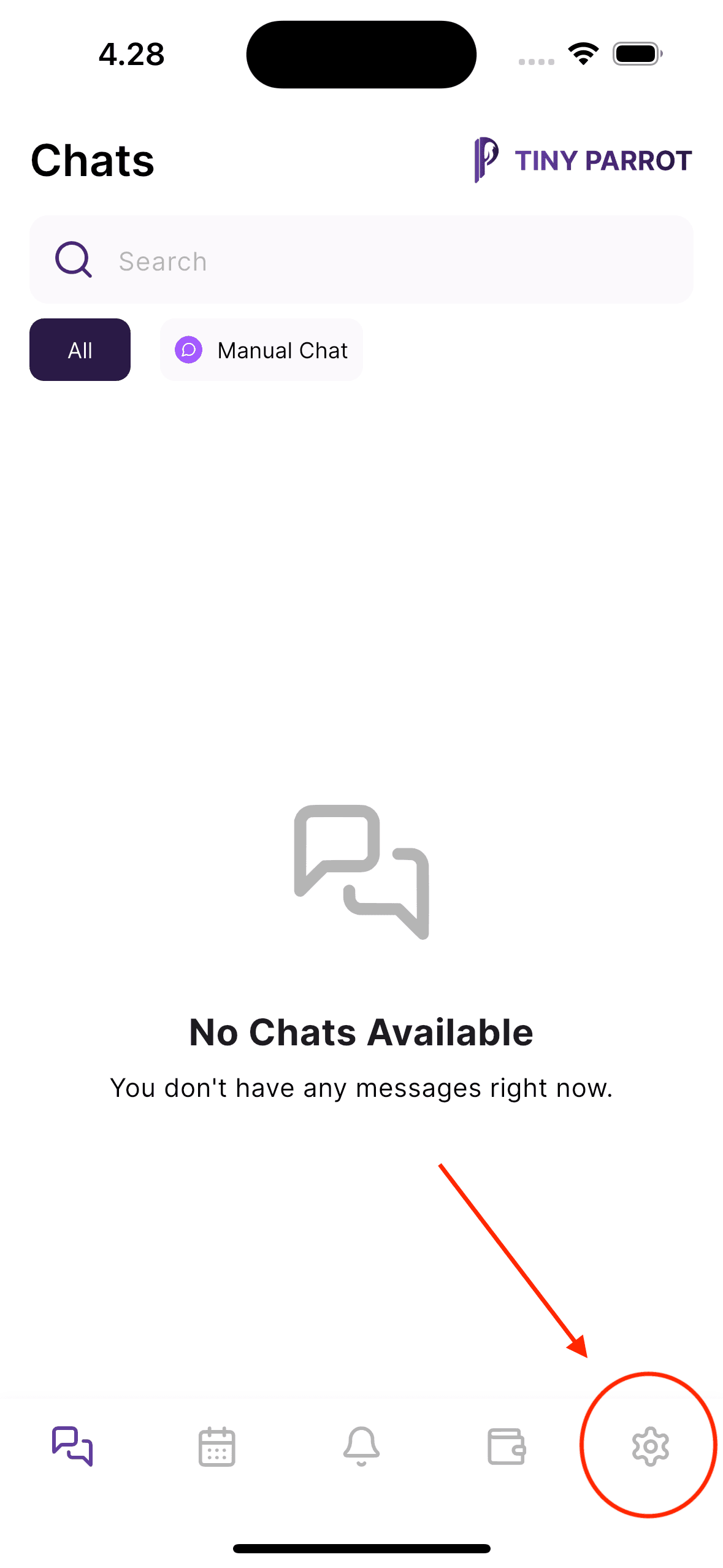
On the bottom navigation bar, locate the gear icon at the bottom right corner of the screen.
Tap it to open the Settings screen.
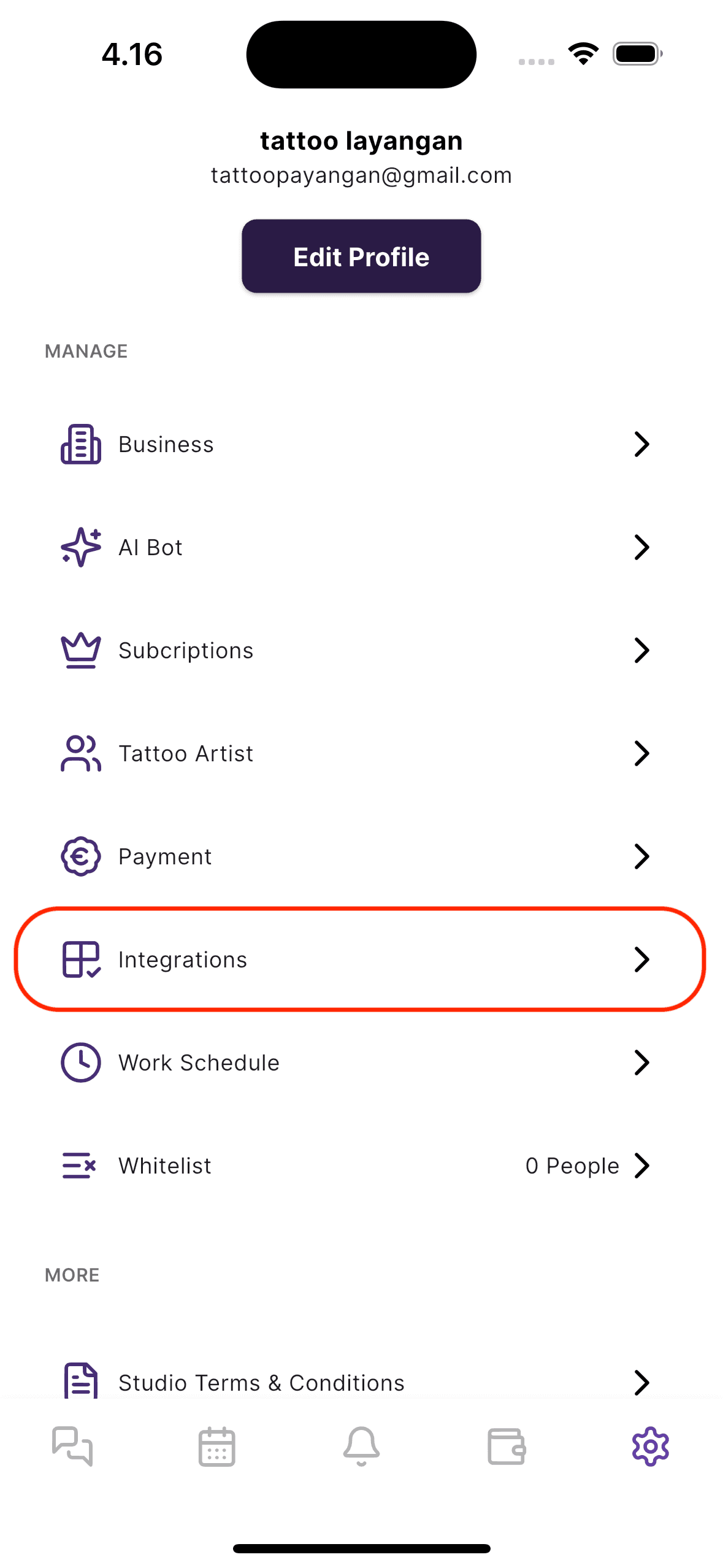
Scroll down on the Settings screen until you see a menu item called Integrations.
Tap the Integrations menu to open the integrations options.
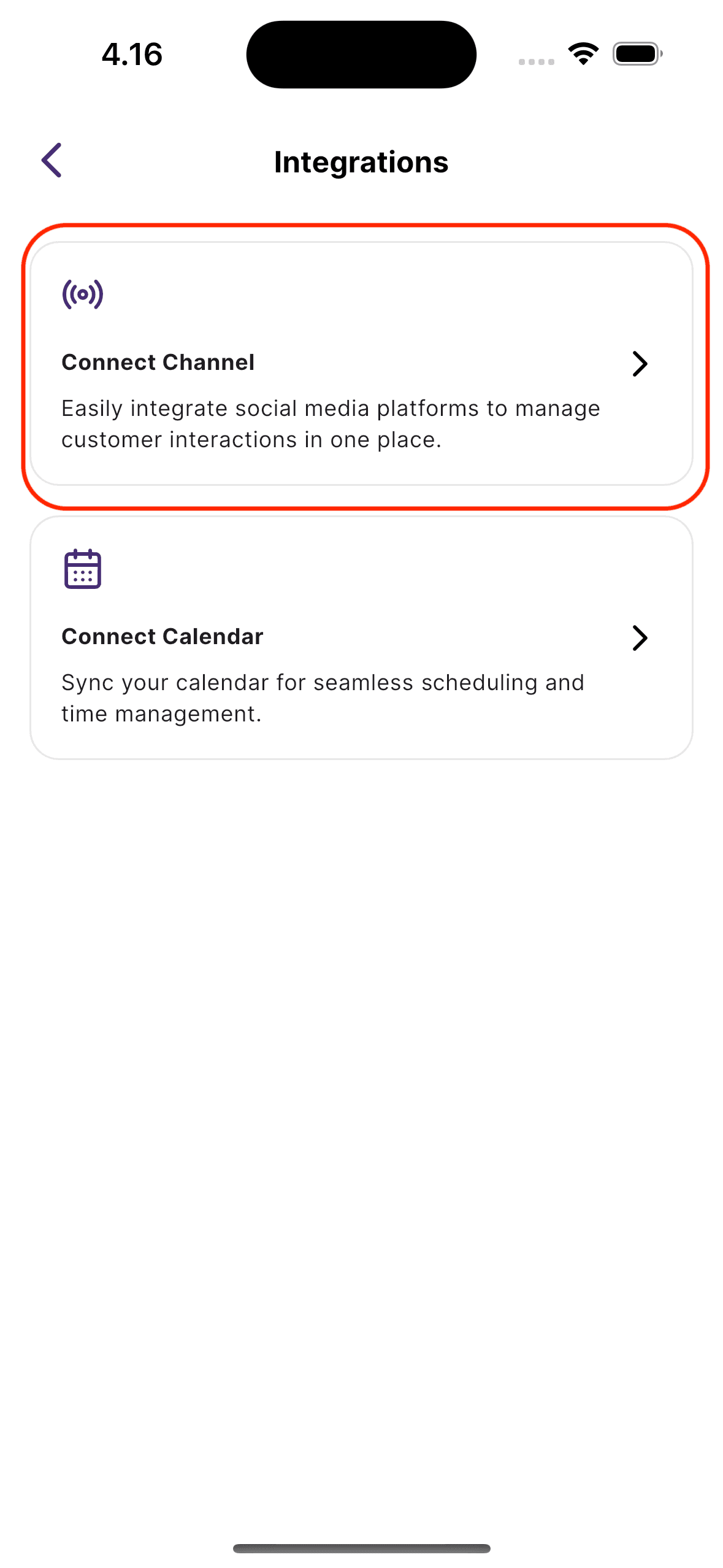
Inside the Integrations screen, you will see several cards or tiles.
Choose the card labeled Connect Channel.
Tap on it — this will bring you to a screen that shows a list of supported social media platforms.
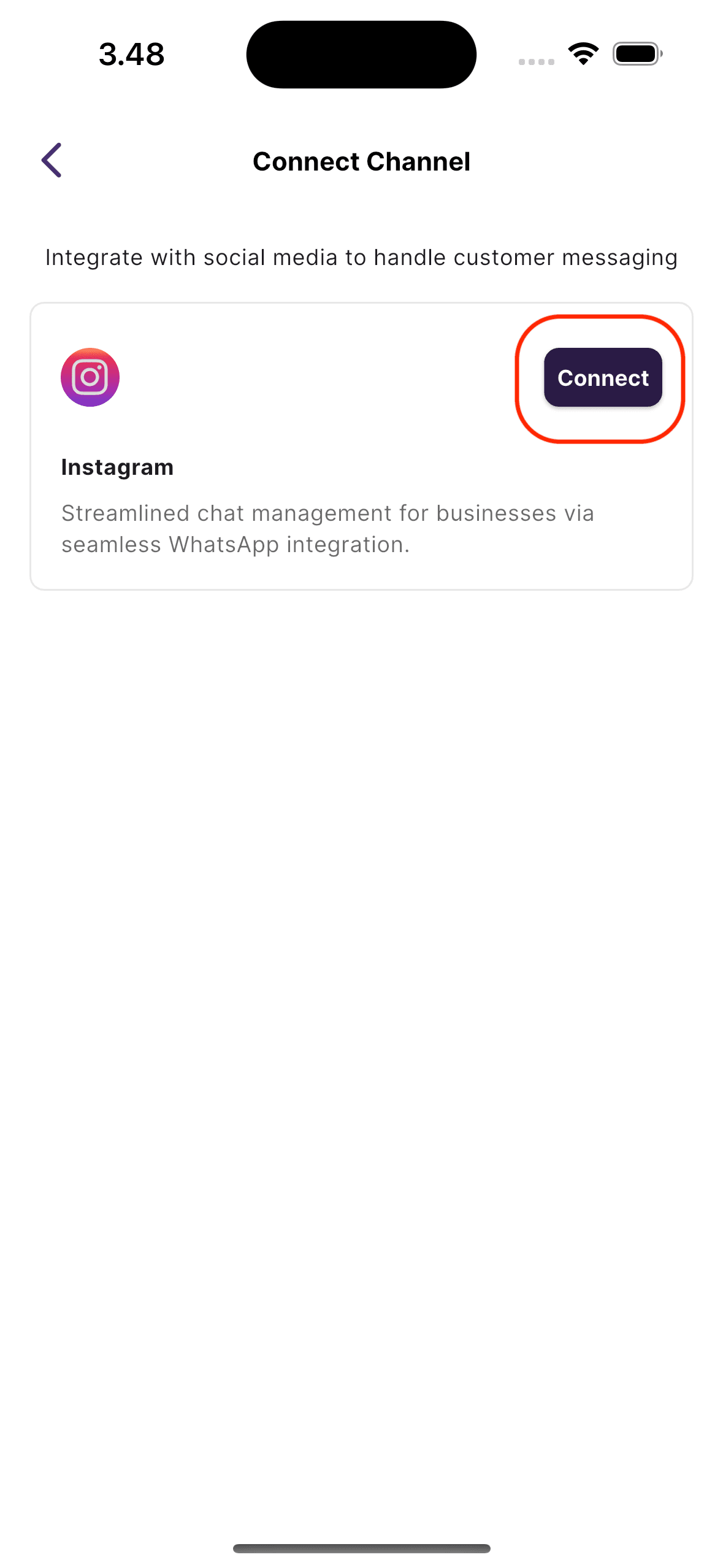
On the Social Media List screen, look for the Instagram option.
Next to Instagram, tap the Connect button.
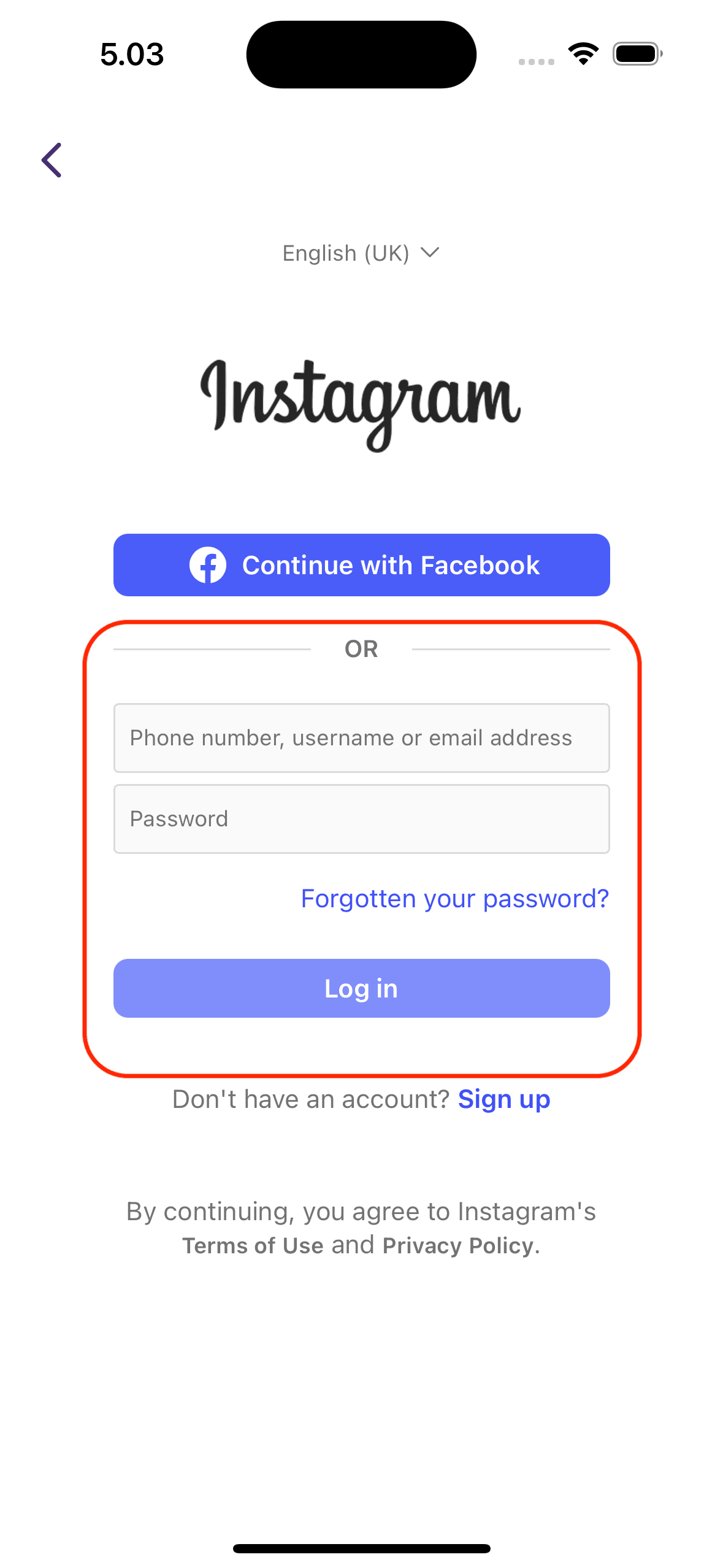
You will now be redirected to Instagram/Meta's official login and permission screen.
Log in with the Instagram account that you want to connect.
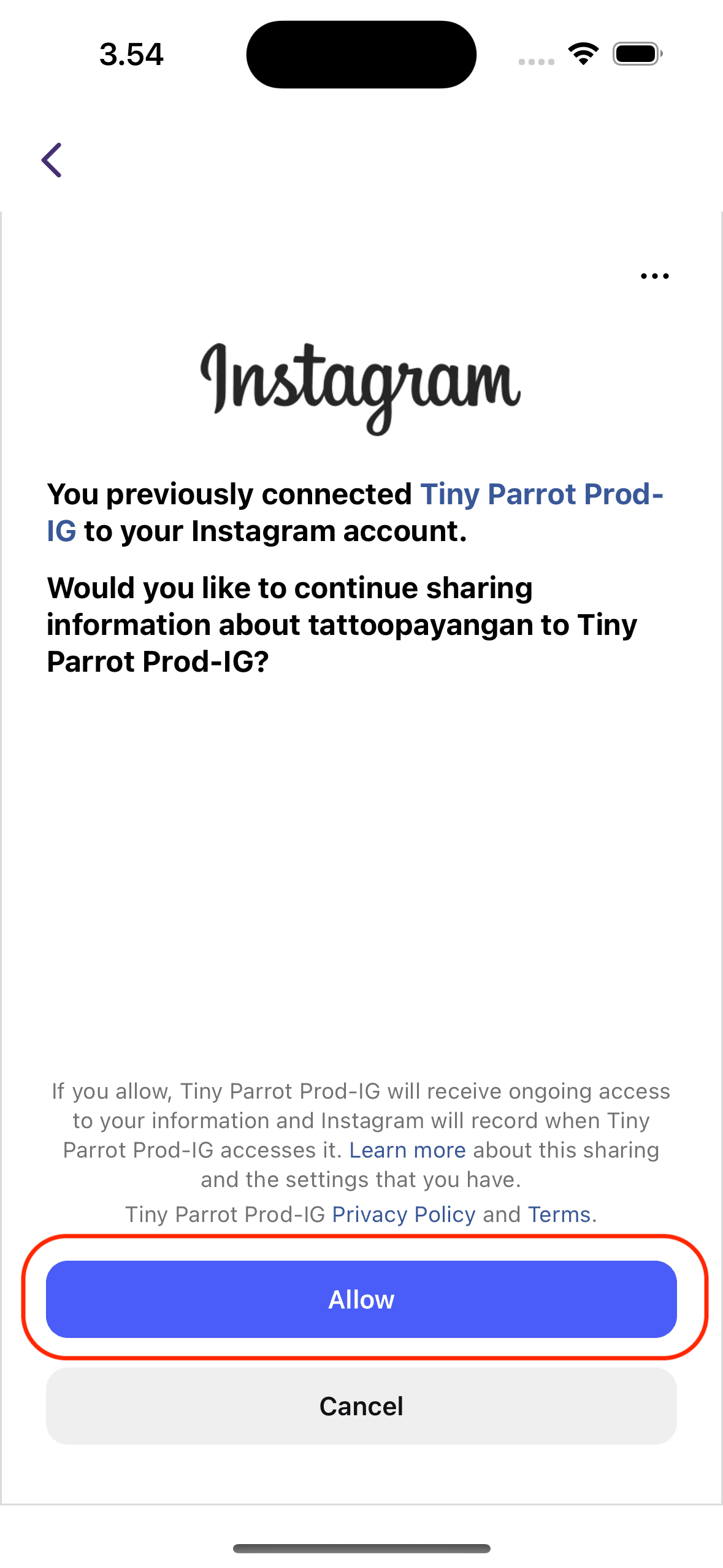
You may be asked to:
Tap Next or Allow as prompted on each step until the process is complete.
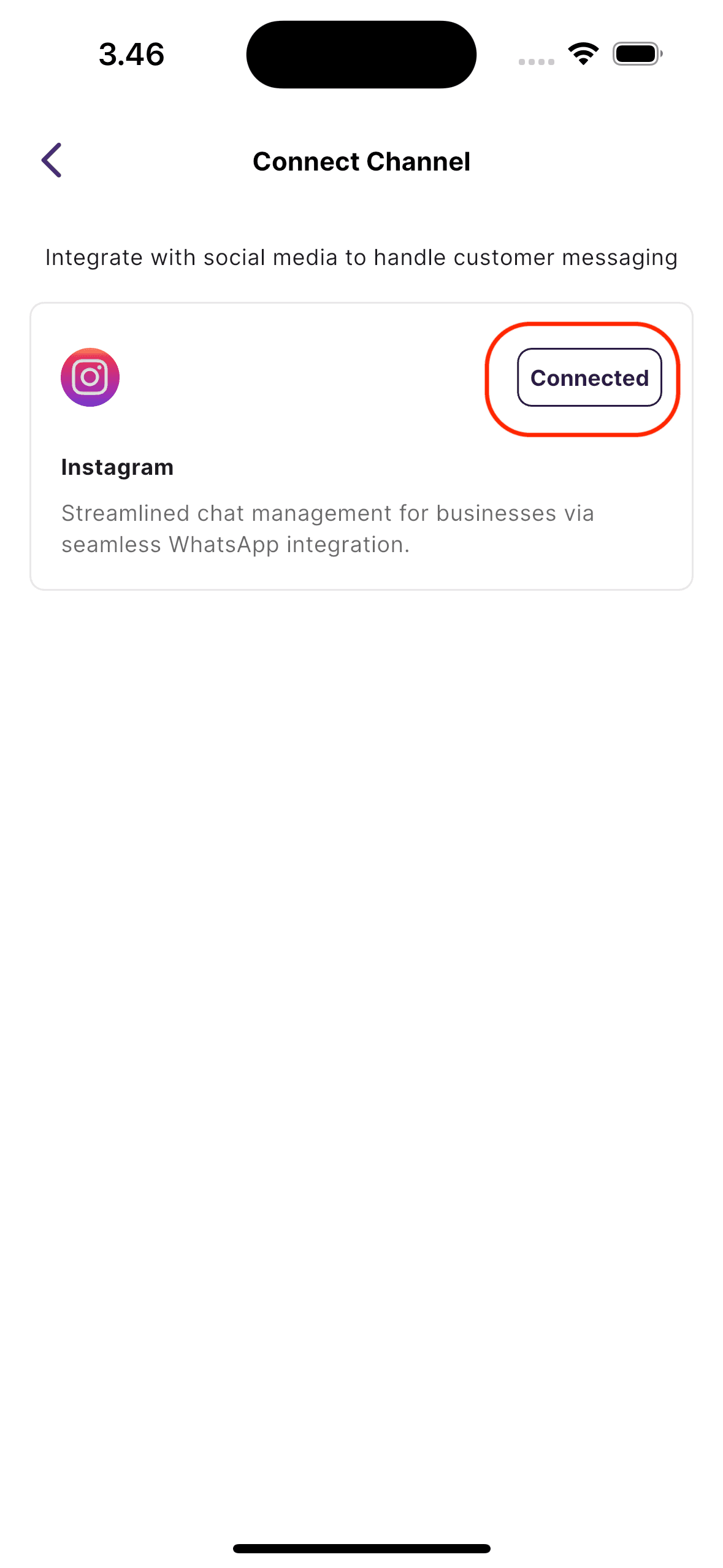
Your Instagram account is now connected to Tiny Parrot. If you look at the connect channel screen, the button “Connect” will change to “Connected.”
You can now:
If you followed the steps above but your Instagram account still isn't connected, try this fix:
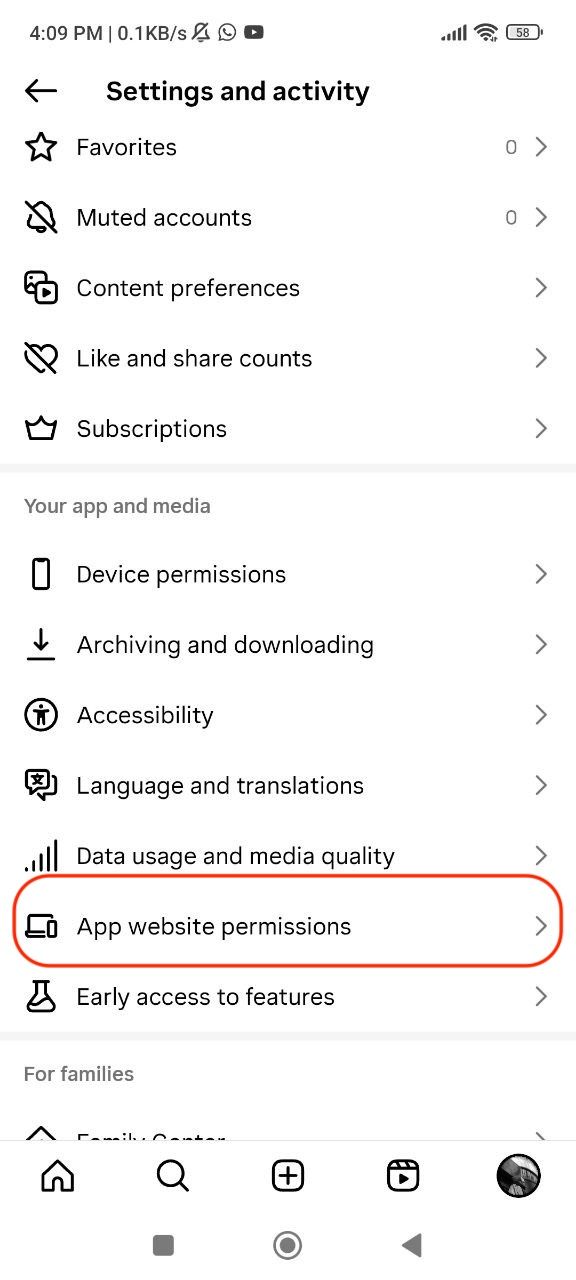
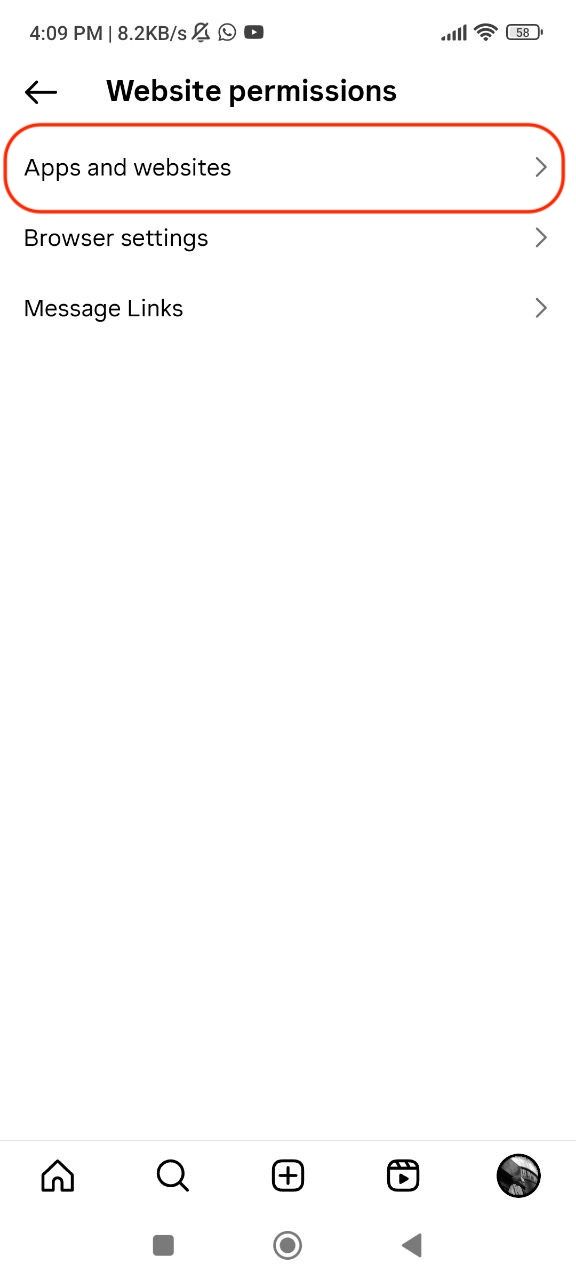
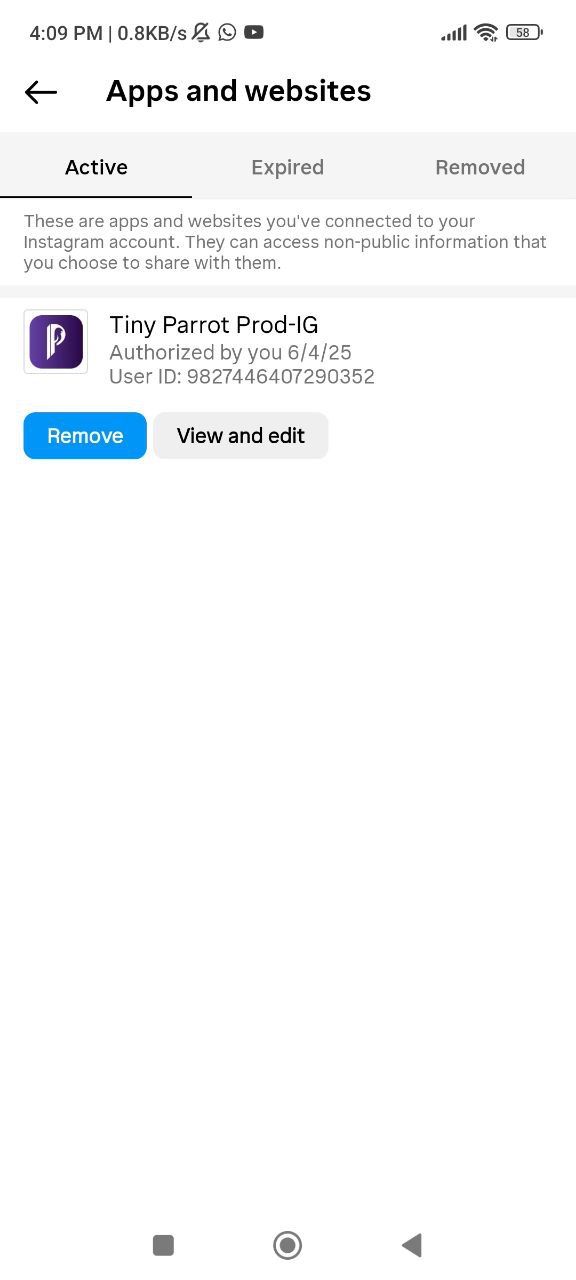
Once the app is properly allowed in your Instagram settings, you should be able to connect your account without issues.