How to Create a Tiny Parrot Account
A Step-by-Step Guide for Tattoo Artists
Tiny Parrot is a powerful app designed to help tattoo artists manage appointments, receive payments, and streamline communication with clients. Here’s how to create your account and get started.
Register and Subscribe on the Website
Before using the mobile app, you need to create an account and subscribe to a plan on our official website.
Here's how to do it:
- Open your browser on your phone or computer.
- Go to 👉 https://app.tiny-parrot.com
- On the homepage, look to the top right corner and click the “Get Started” button.
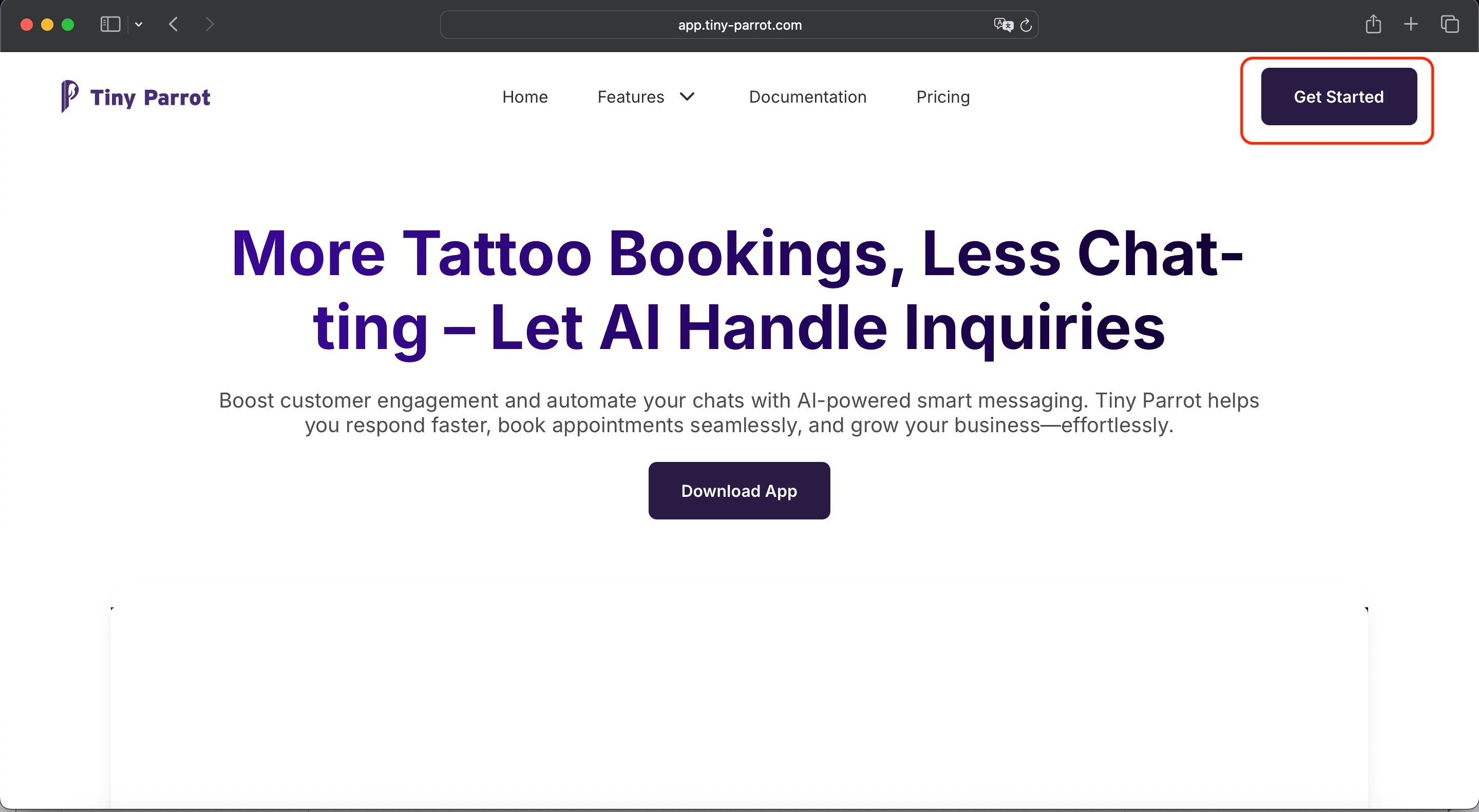
You’ll be redirected to the Sign-In screen
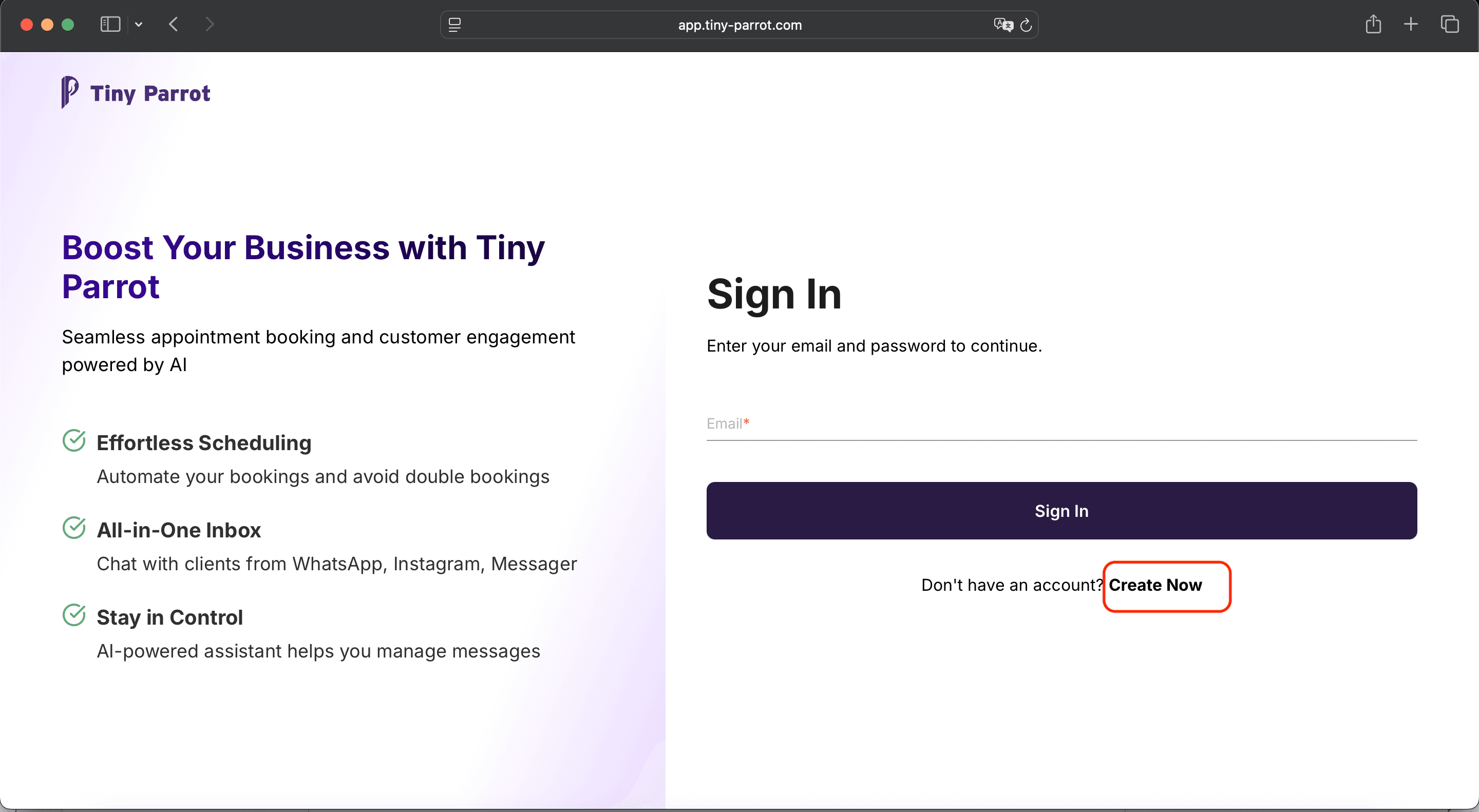
- On the Sign-In screen, look for “Create now” below the login form. Tap or click that link.
- You’ll be taken to the registration screen.
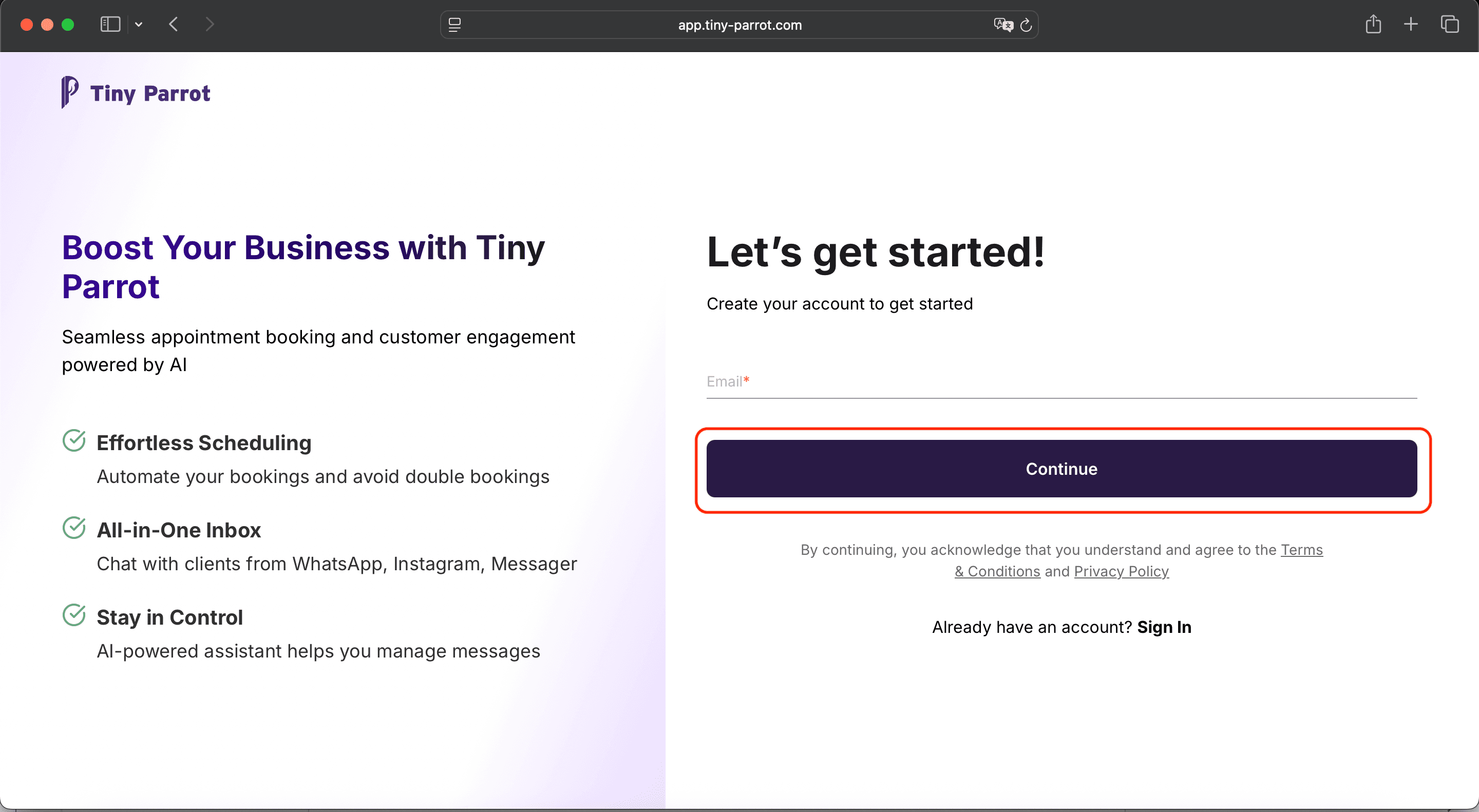
On the registration form:
- Enter your email address
- Click **continue **
Note: This email will be your login for the mobile app. Make sure you have access to it.
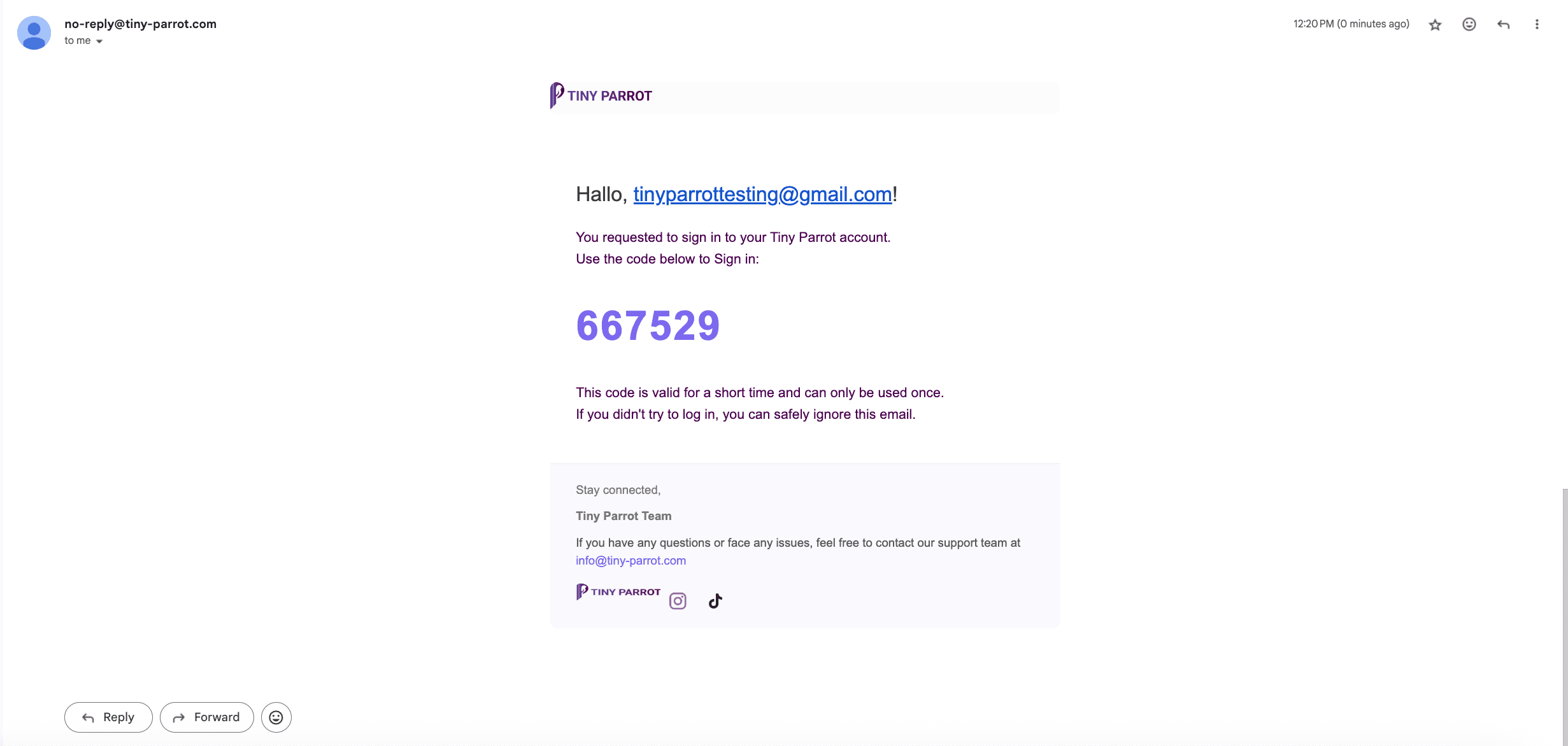
Verify Your Email with an OTP
After clicking Continue:
- Check your email inbox for a message from Tiny Parrot.
- You’ll receive a 6-digit OTP (One-Time Password).
(Look in the spam/junk folder if you don’t see it right away.)
Go back to the Tiny Parrot website.
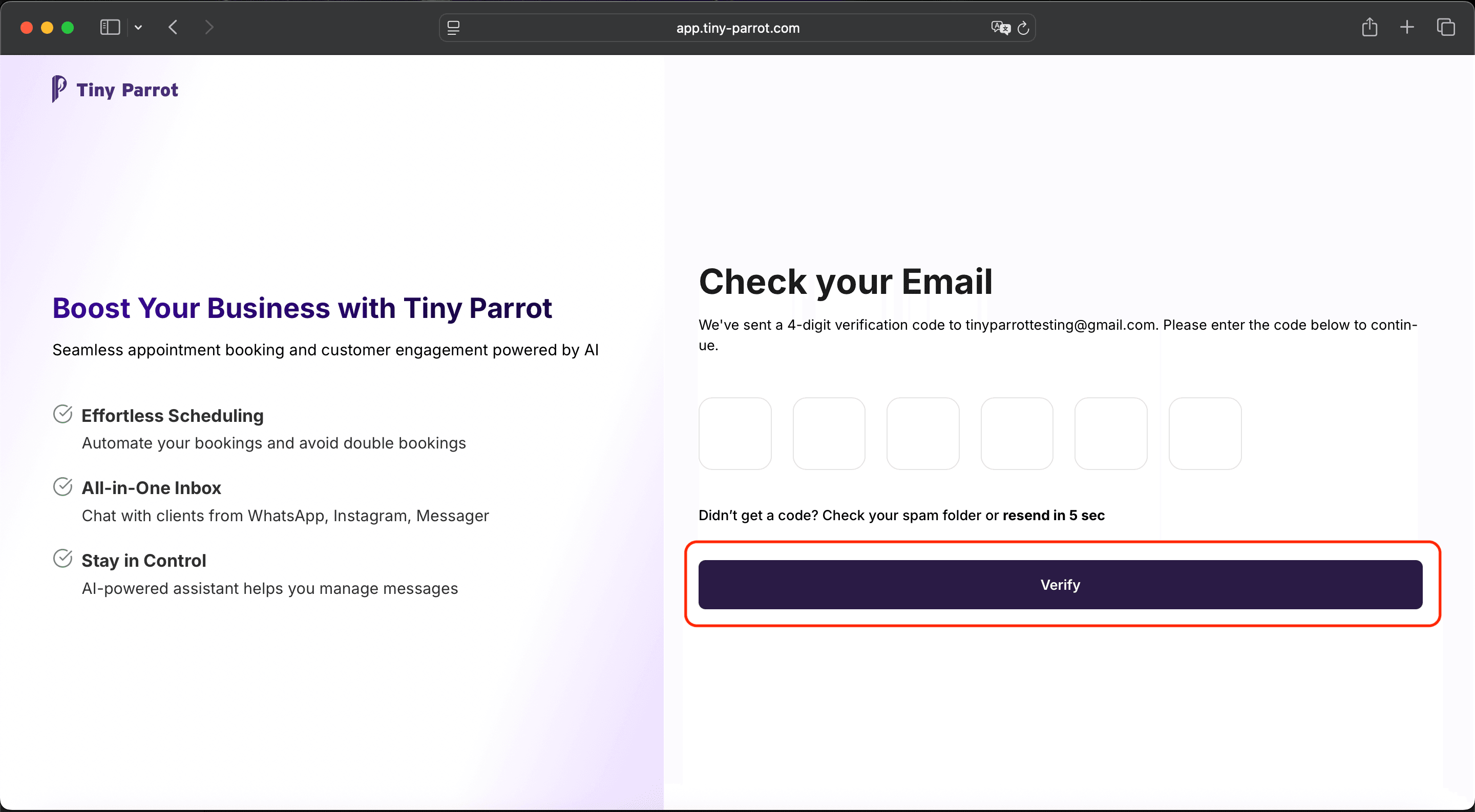
Enter the OTP code in the form that looks like this screen below and then Click “Verify” to confirm your email.
Choose a Subscription Plan
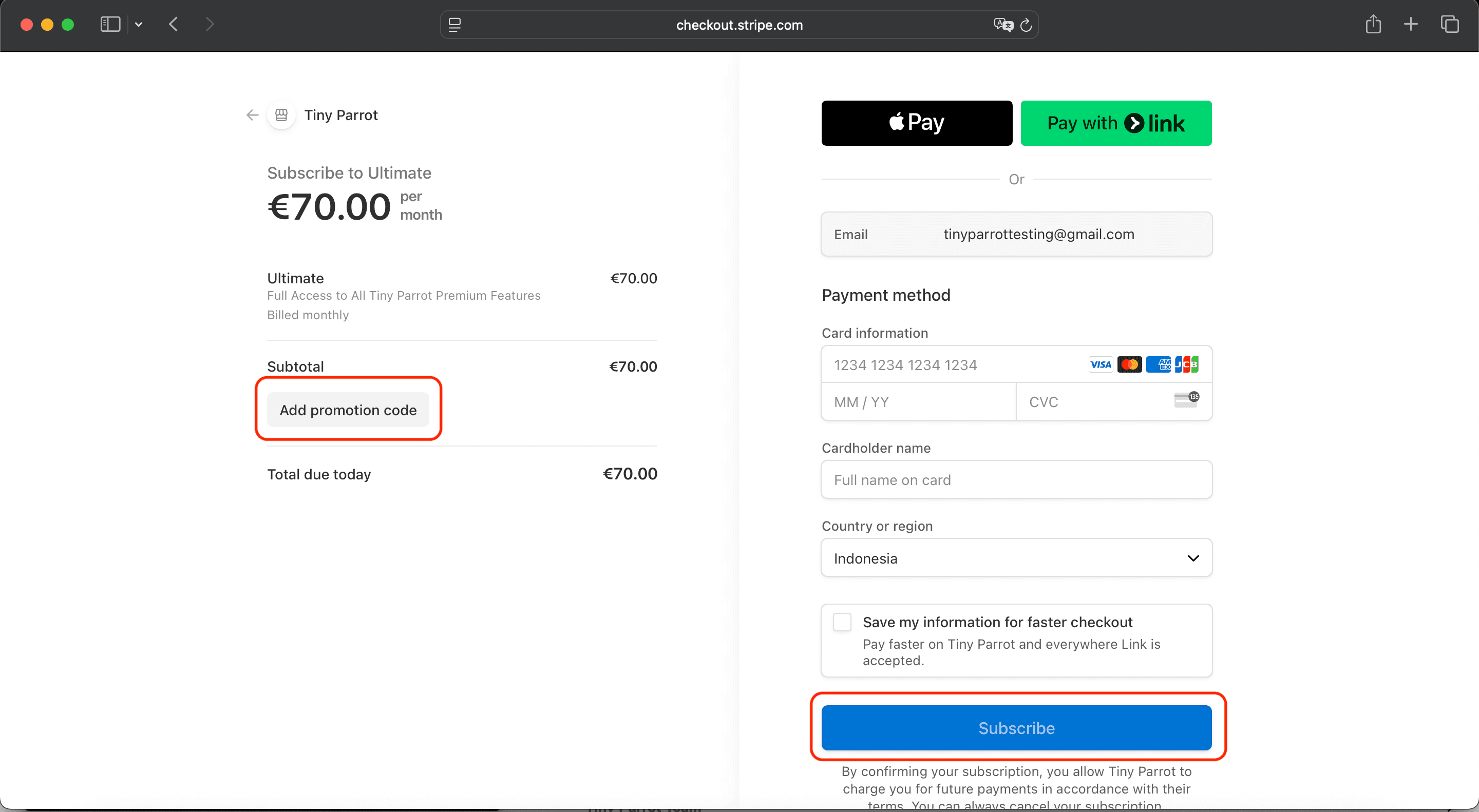
After verifying your email, you’ll automatically be redirected to the Subscription Plan screen.
Here's what to do:
- Tap the “Get Started” button to proceed.
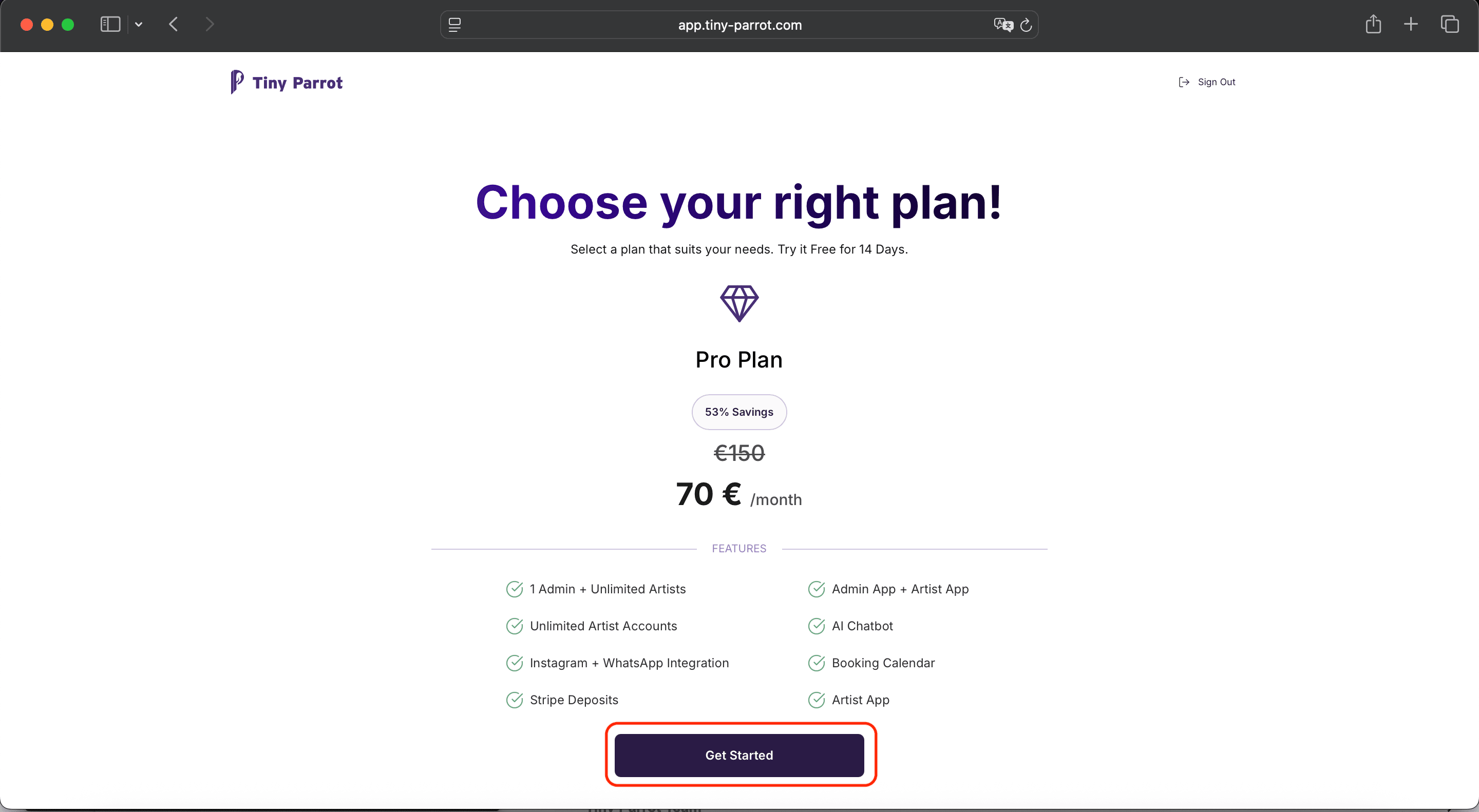
- You’ll be redirected to a secure payment page powered by Stripe.
At this point, you can:
- Enter a promo code (if you have one) by clicking “Add Promotion Code”
- If you don’t have a code, just skip that part
- Click “Subscribe” to complete your payment.
**A subscription is required to use the app **
✅ Once your payment goes through, your account is fully active and ready to use with the Tiny Parrot app!
Download and Open the App
- Go to the App Store (for iPhone users) or **Google Play Store **(for Android users), search for “Tiny Parrot”, and install the app.
- Once installed, open the app by tapping the Tiny Parrot icon on your home screen.
Welcome Slides – What Is Tiny Parrot?
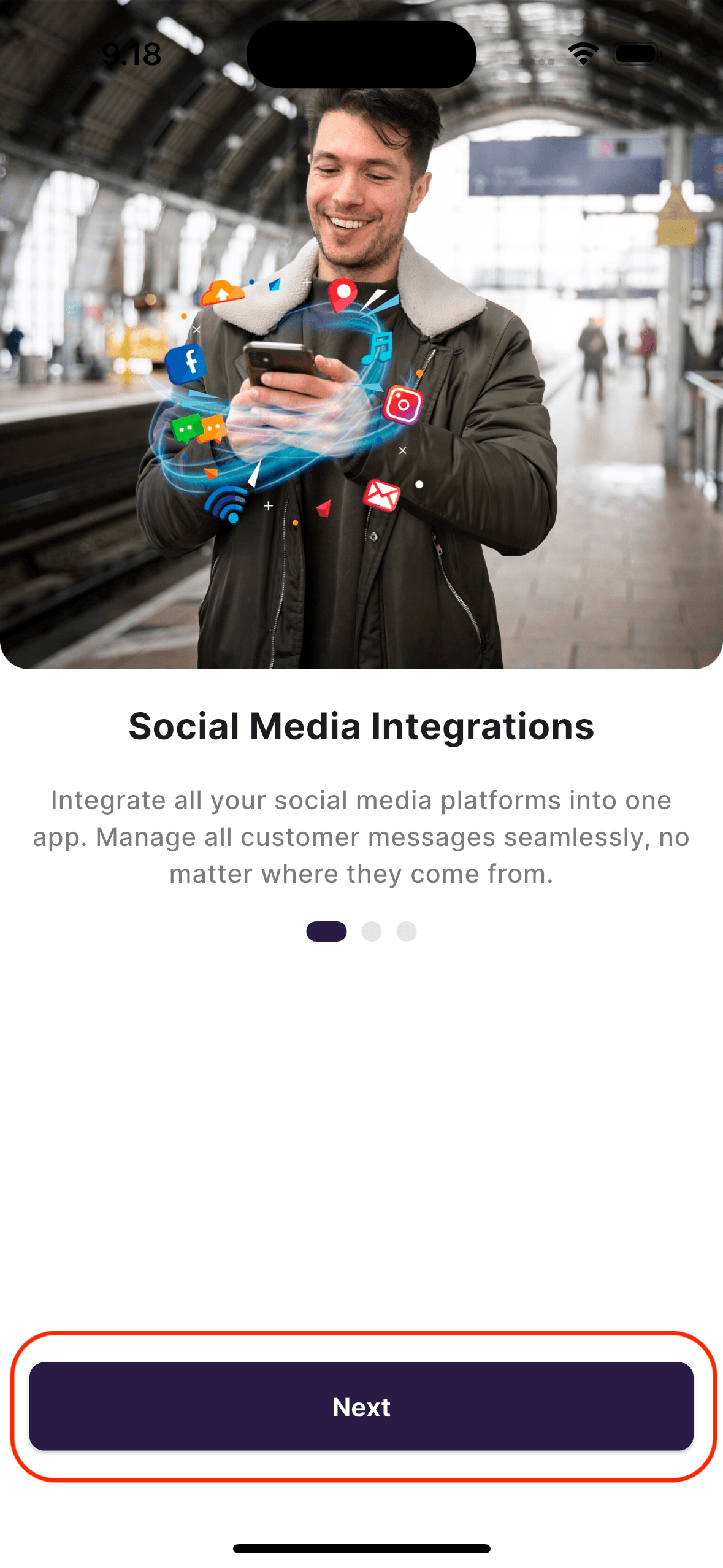
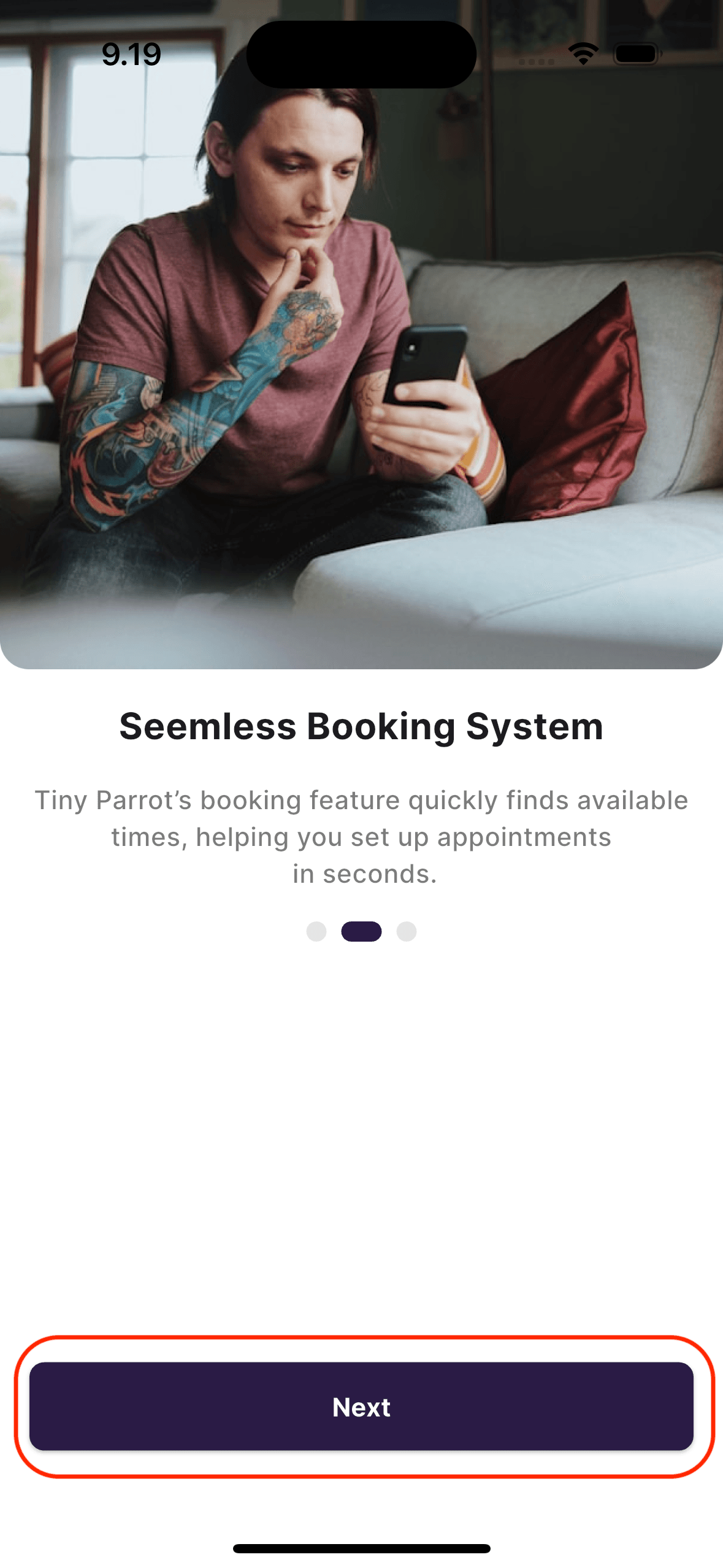
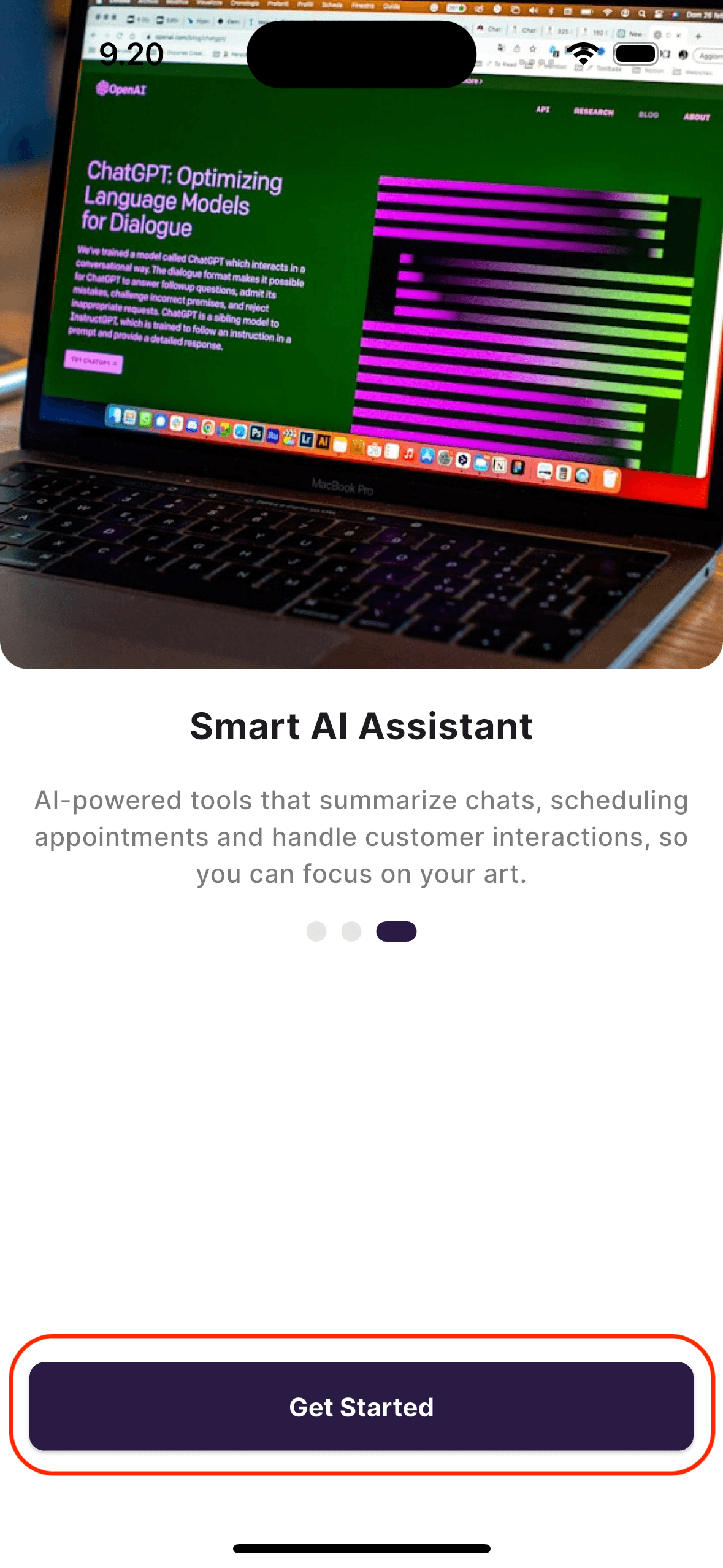
When you open the app for the first time, you’ll see a series of introductory slides. These explain what the Tiny Parrot app is, and how it helps tattoo studios manage bookings and payments.
- Tap the “Next” button on each slide to move through the introduction.
📝 These slides are helpful if you’re new to the app and want a quick overview of its features.
Log In to the App
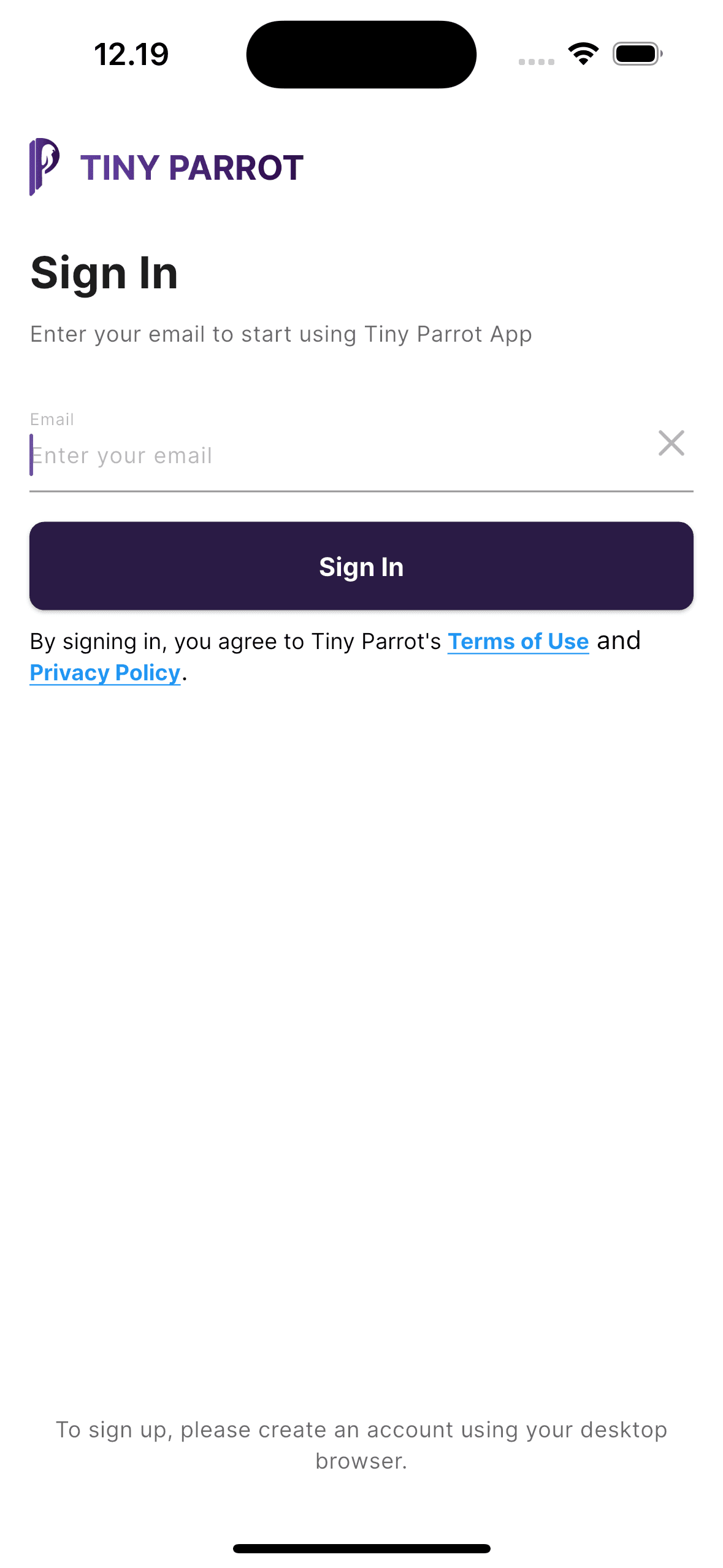
Once you finish the welcome slides, you’ll see the ** Login Screen**.
Here's how to log in:
- Enter the same email you used to register on the website.
- Tap “Sign In”
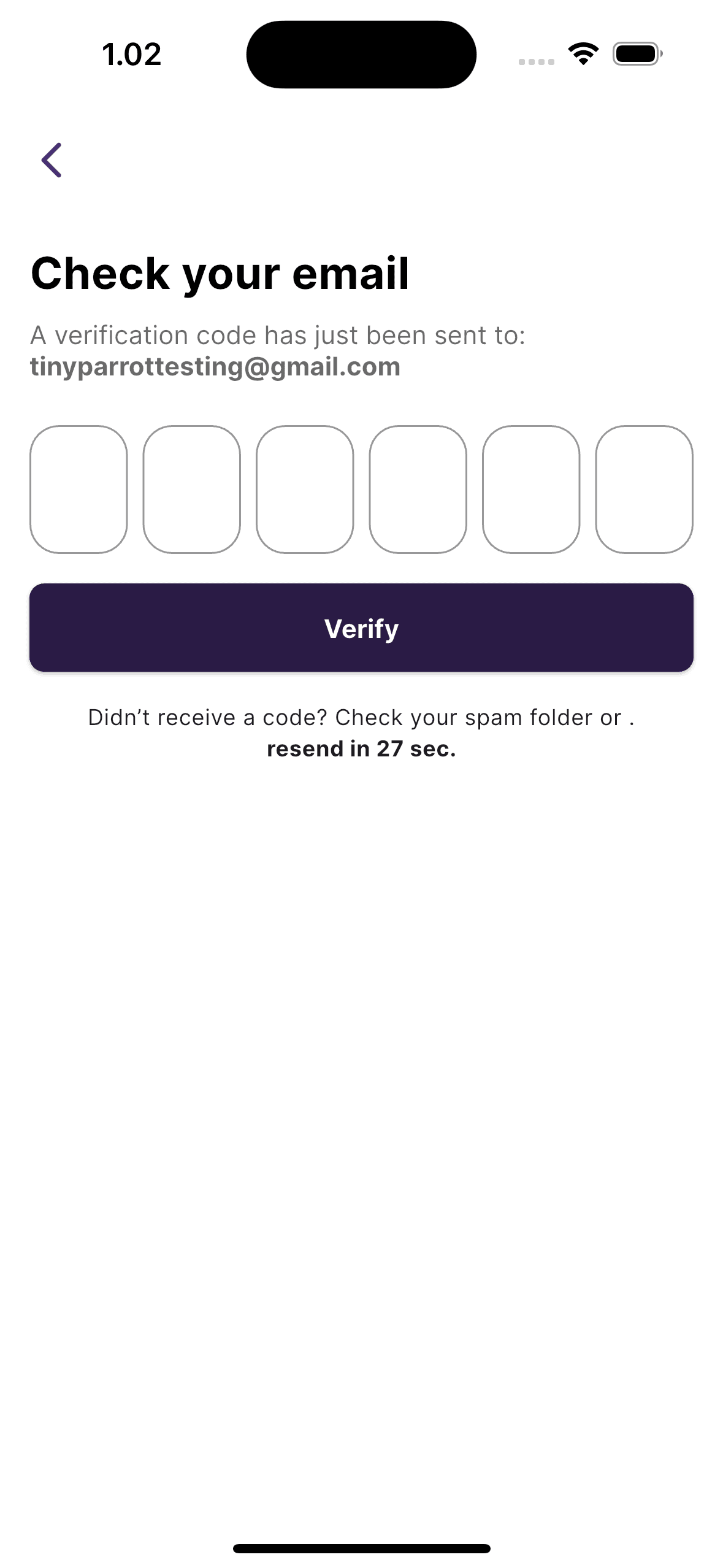
- You’ll be asked to enter another OTP code, sent to your email.
- Check your inbox and enter the code in the app.
- Once verified, you’ll be taken to the Account Setup screen.
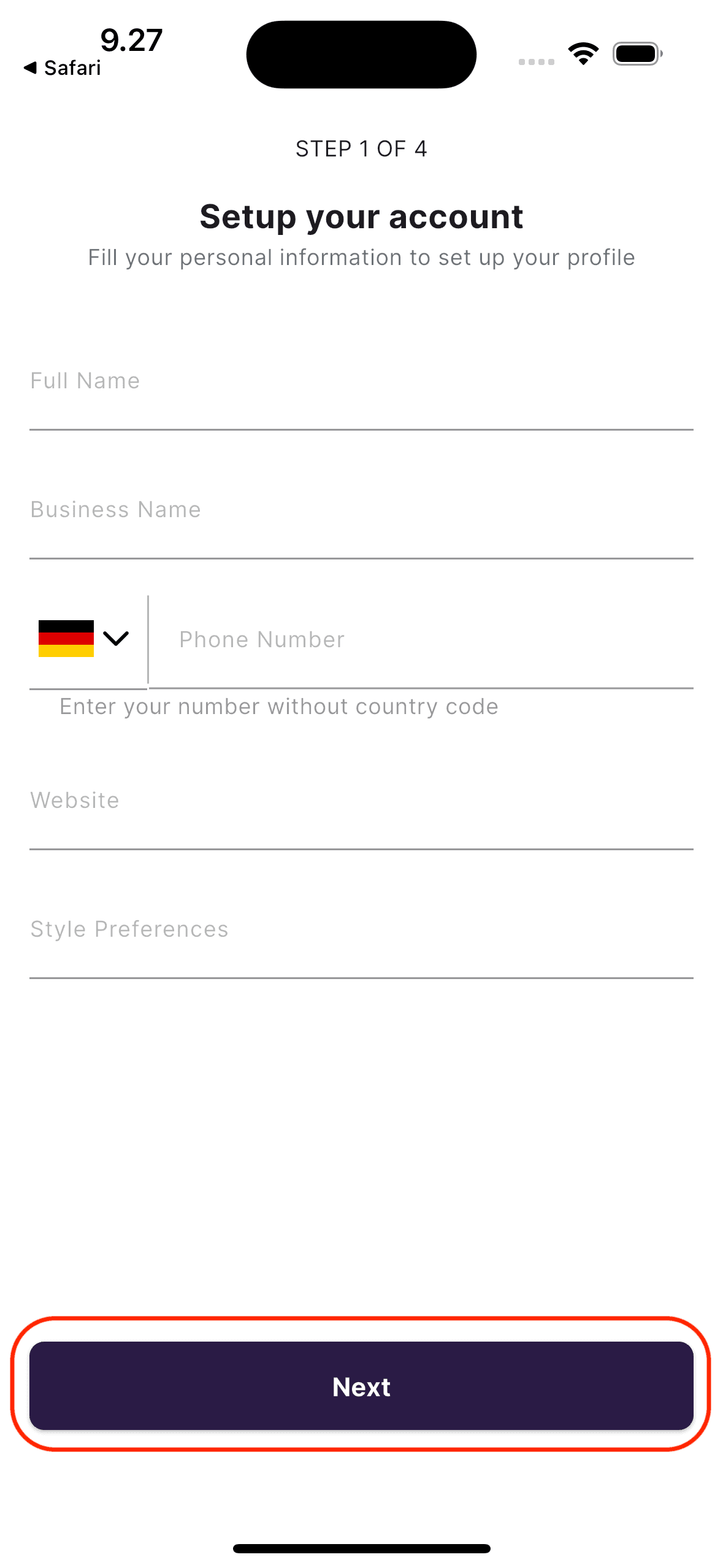
Add Tattoo Studio Information
You’ll now be asked to fill in details about your tattoo studio, such as:
- Business name
- Address
- Contact info
- etc
These details will be used in client-facing features like appointment receipts.
Tap “Next” once all fields are filled.
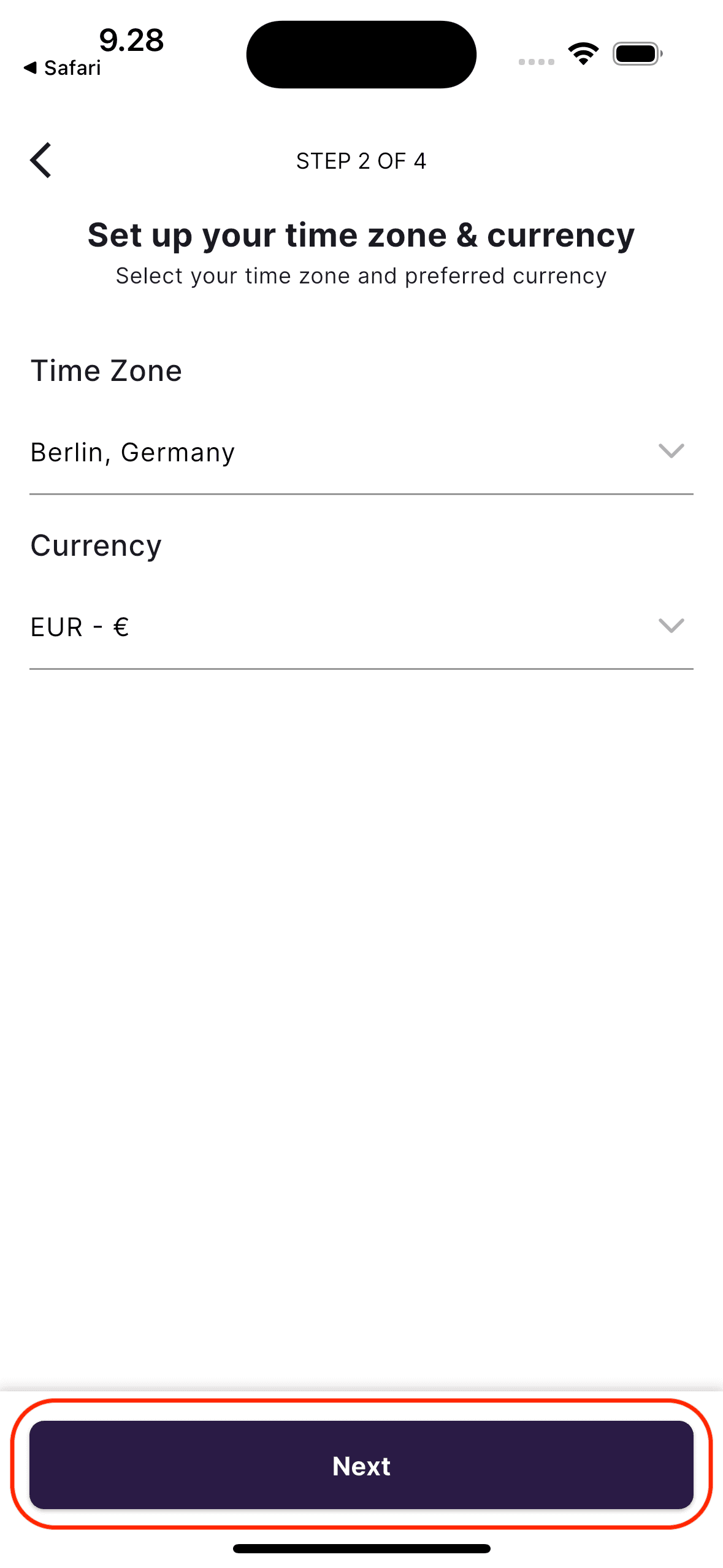
Set Time Zone & Currency
Next, choose:
- Your local time zone (for booking availability)
- Your preferred currency (for payments and invoices)
This ensures customers see the correct time and pricing when they book with you.
Tap “Next” to continue.
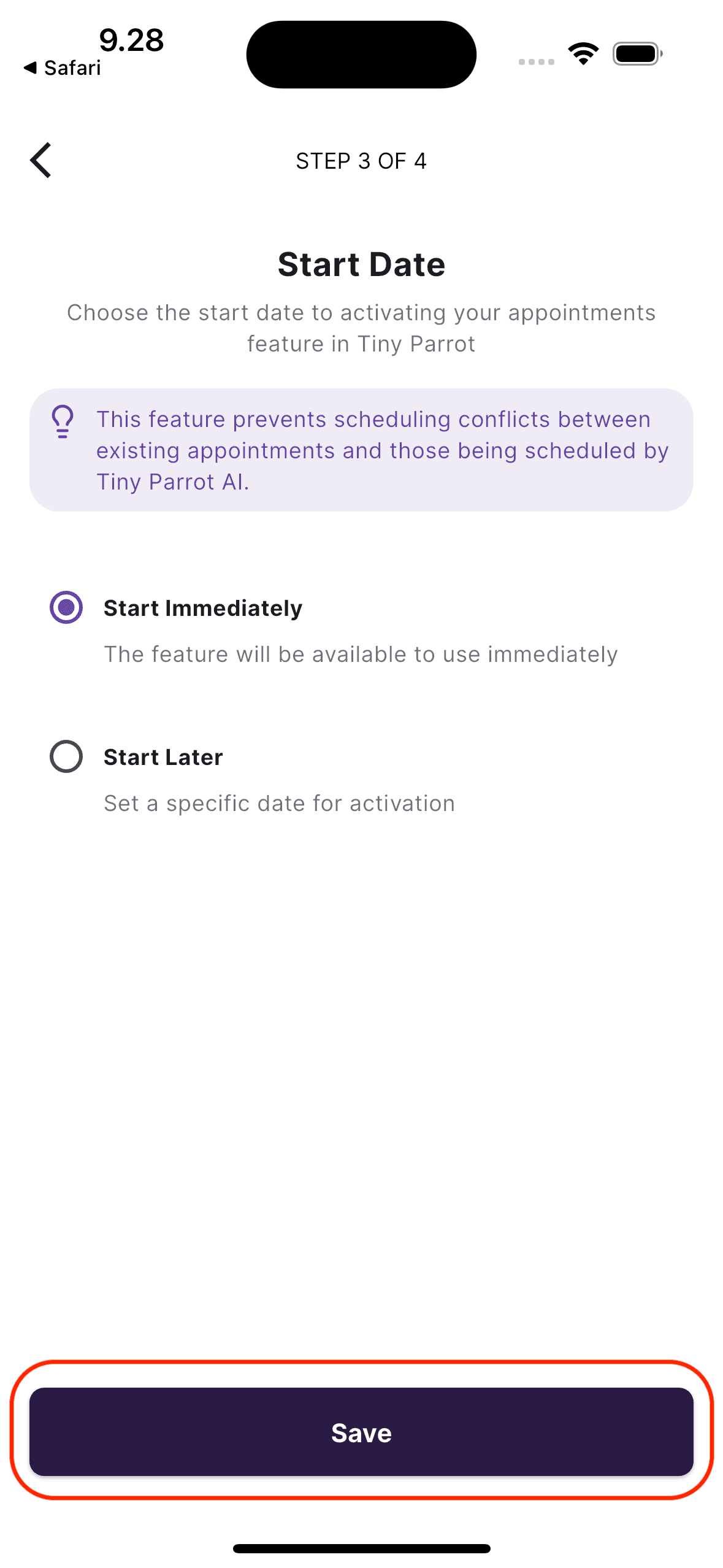
Choose Appointment Start Date
You’ll be asked to decide when you want to begin accepting bookings.
You have two options:
- Start Immediately — bookings can start right away.
- Start Later — choose a specific start date.
Once you’ve made your selection, tap “Next.”
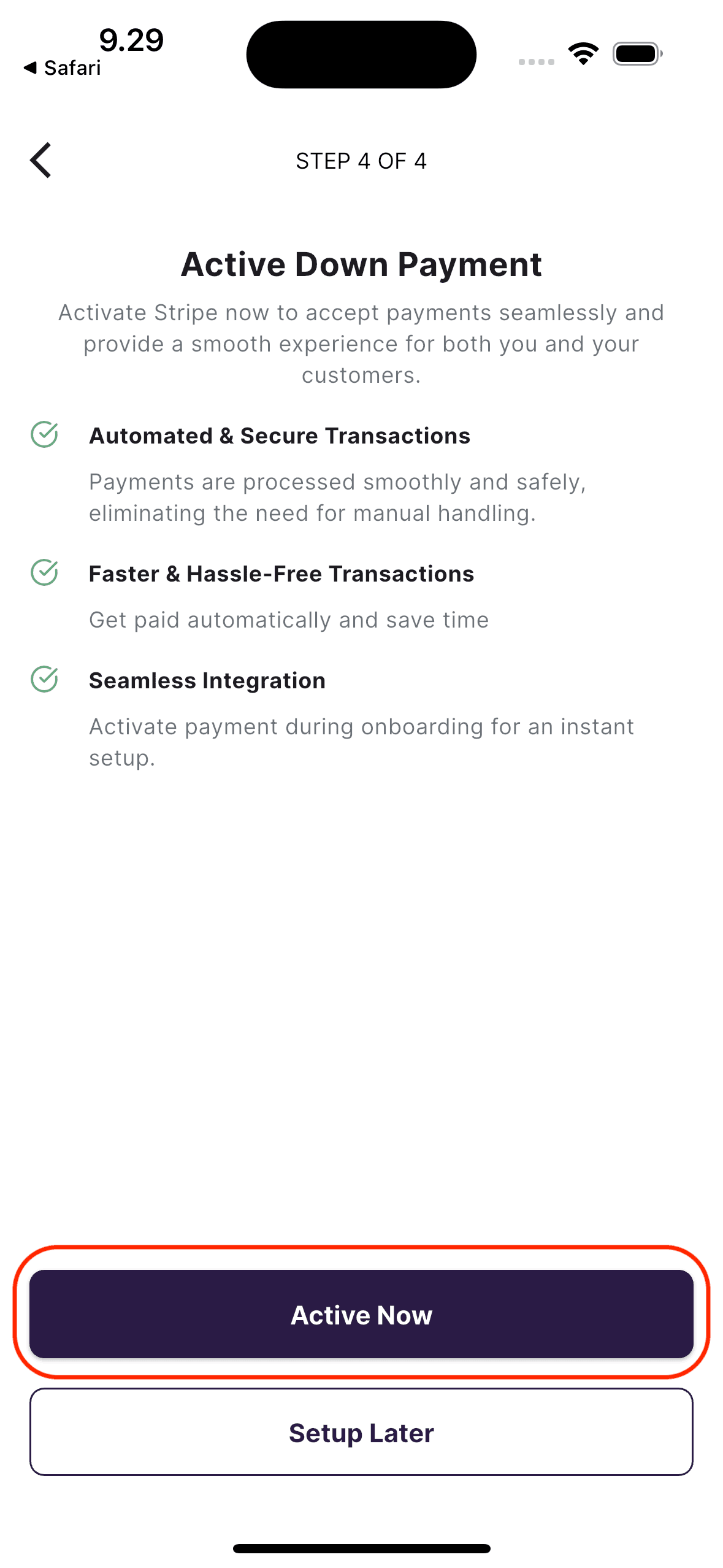
Down Payment Settings
If you want customers to pay a deposit (down payment) when they book:
- Tap the “Activate Now” button
- You’ll be redirected to Stripe to configure the payment setup
This feature helps secure appointments and reduce cancellations.
Business Account Created
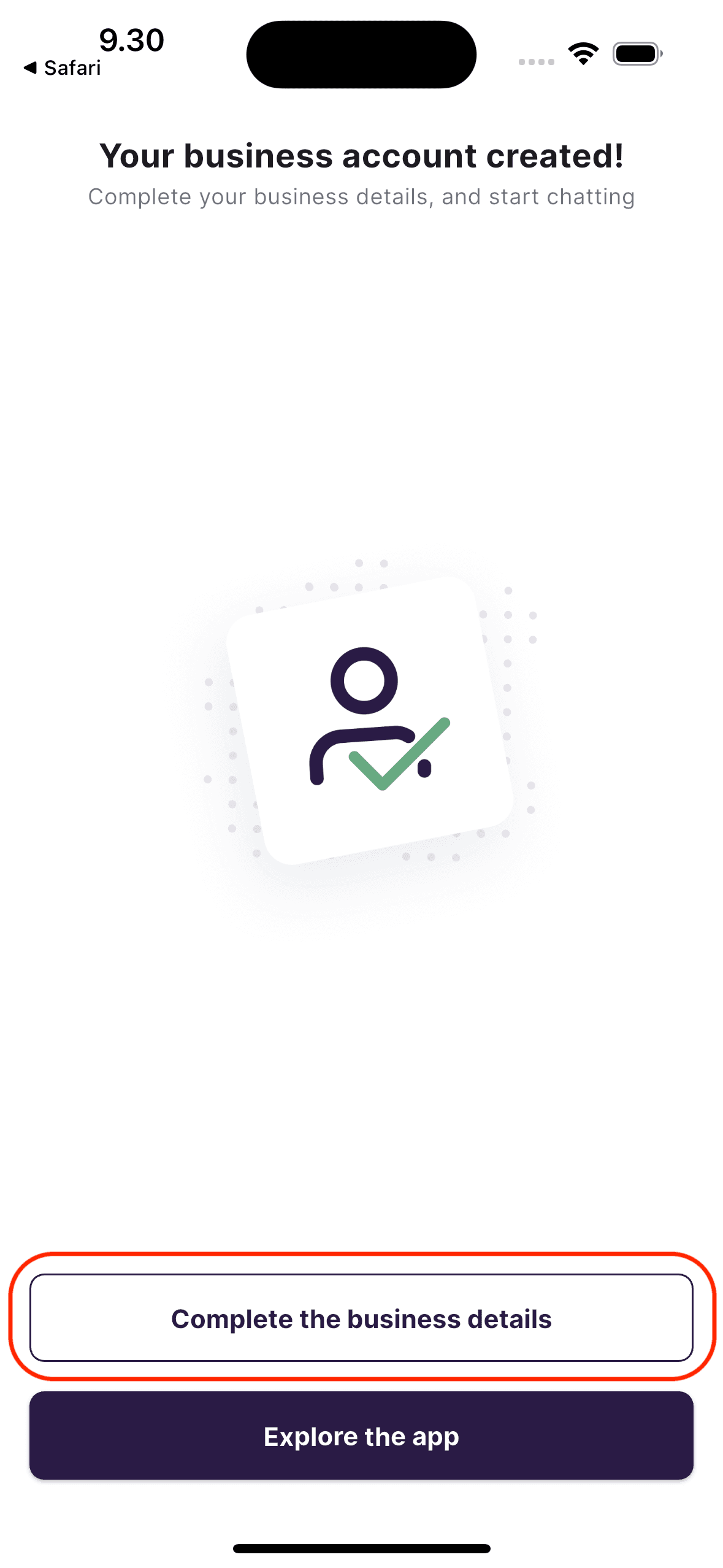
You’ve successfully created your business account! You’ll now see a screen with two choices:
- Complete Business Details – Add more information such as working days and AI assistant settings
- Explore the App – Jump into the dashboard to see your home screen and tools
🔔 Note: You can always complete your business details later from User Settings, but full features (like AI assistant) won’t activate until you do.
Set Working Days
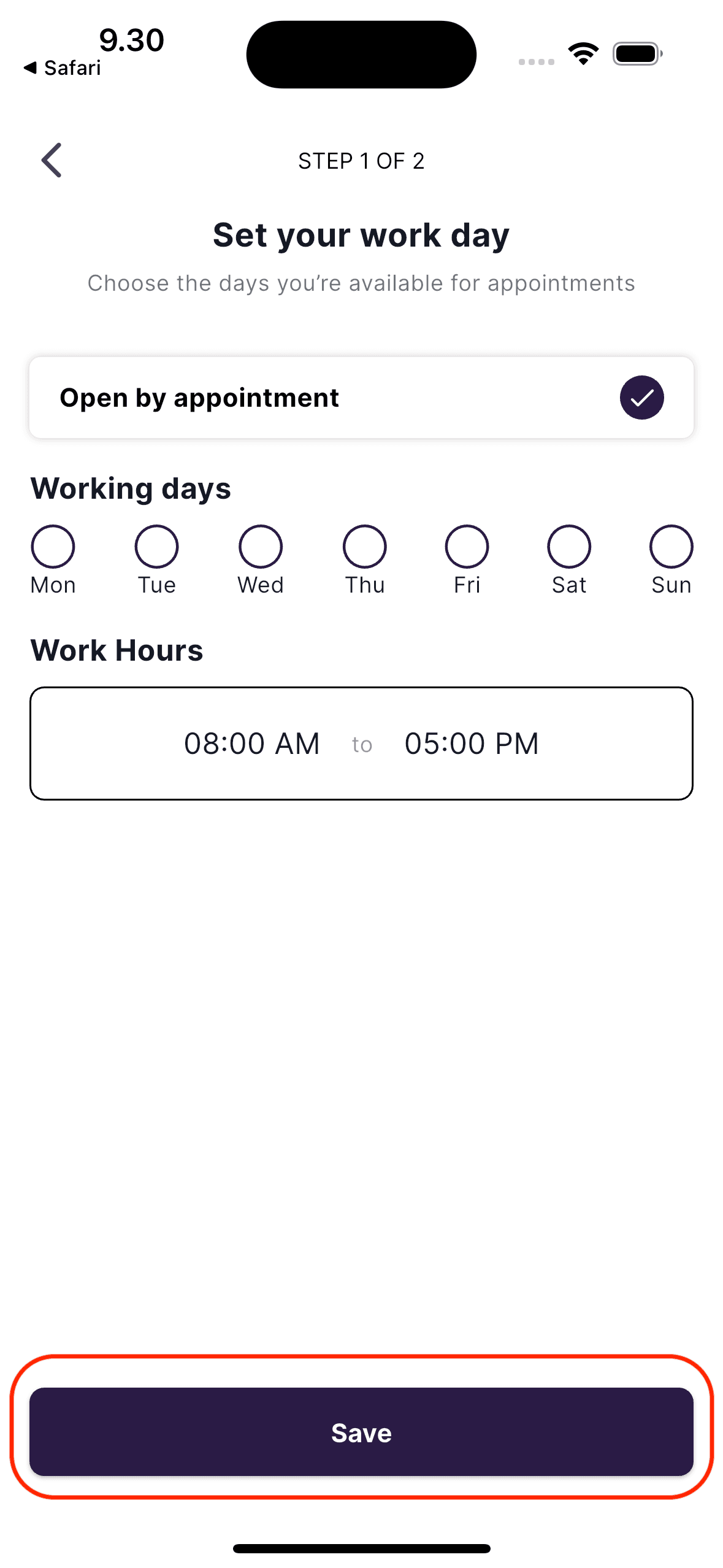
If you chose to complete your business setup, you’ll see a screen where you can:
- Select your working days (e.g., Monday–Friday)
- Set business hours
- Tap “Save” after setting your schedule.
Connect Instagram Channel
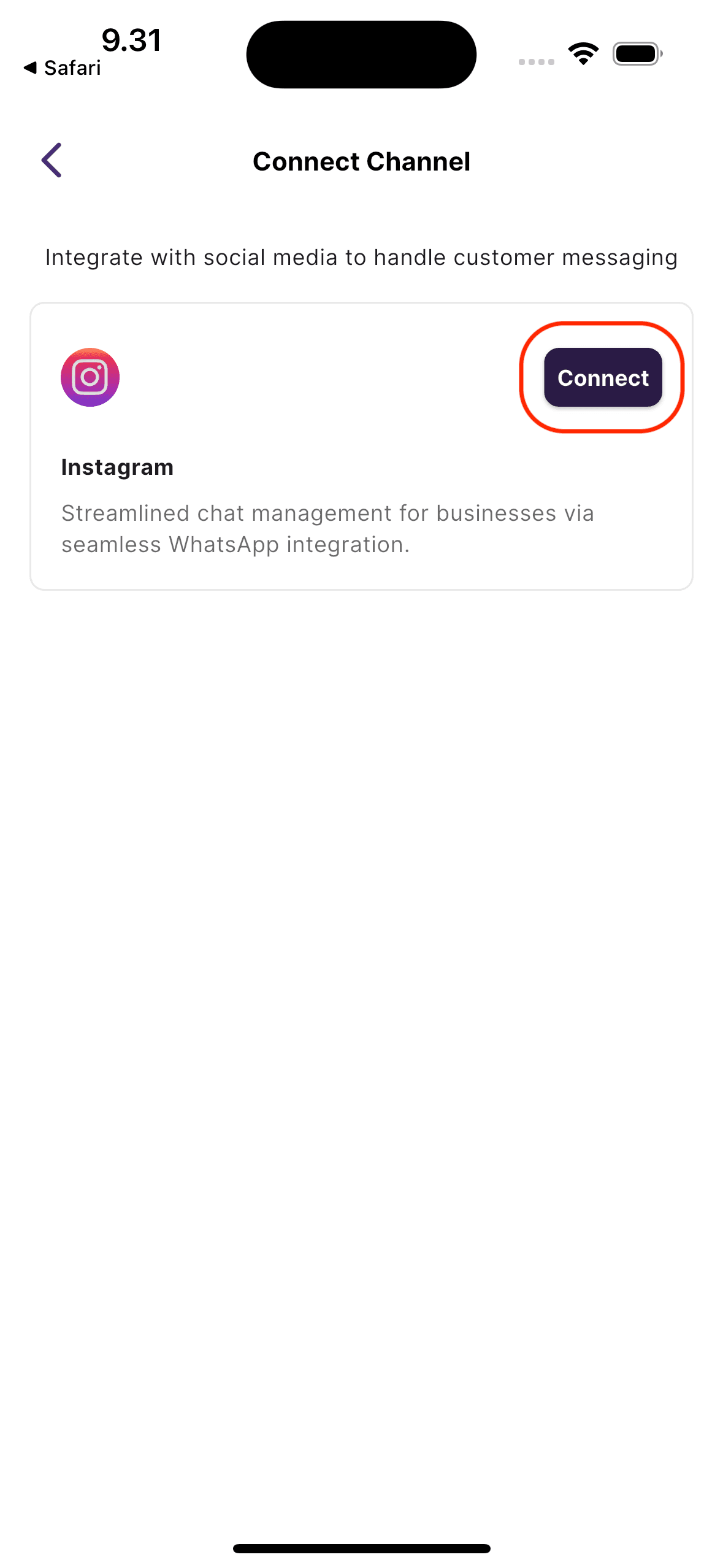
To activate Instagram messaging (for client inquiries and bookings):
- Tap the “Connect Instagram” button
- You’ll be redirected to authenticate your Instagram account
- After the connection is successful, you’ll be taken to your Home Page in the app.
✅ You're all set! Enjoy using Tiny Parrot to streamline your appointment
